CRM & Salesforce
Your CRM says opted in. Your email platform says no. Which wins?
Your year-end appeal is ready. One system says a supporter wants to hear from you. The other says they’ve unsubscribed. Before you hit send, find out what each record actually means.
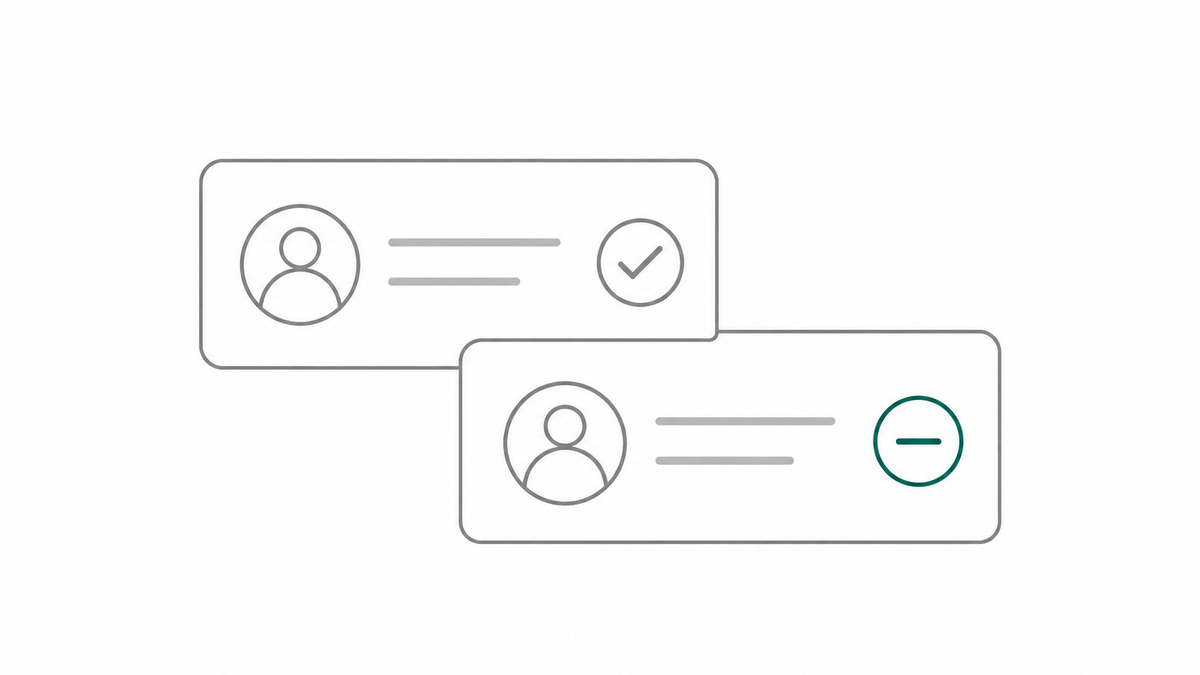
A supporter appears on the audience list for your Christmas appeal. Their CRM record says they’re signed up for the newsletter. In the email platform, they’ve opted out of all marketing emails. Fundraising wants to know which screen to trust.
In one charity setup, we found both flags on the same supporter’s record. The newsletter preference was still ticked, but the broader opt-out in Salesforce Account Engagement was active at send time. The supporter was excluded from the send.
Find out what each field is telling you
A newsletter tick records a choice about one type of email. Check whether that sign-up also covered fundraising appeals. A broader marketing opt-out can cover that newsletter and the rest of your marketing emails. And a hard bounce can make an address unmailable without telling you anything about the supporter’s preferences. Keep those reasons distinct so your team knows what to investigate. Salesforce’s guide to prospect mailability
When there’s an opt-out that covers the email you’re planning, respect it. If you can’t establish what the supporter chose or when, leave them out while you check. The ICO’s charitable purposes soft opt-in has its own conditions and still requires you to honour opt-outs. ICO guidance on email marketing
Run a three-record check before your next appeal
- 01Pick three test records. Use inboxes your team controls to represent one eligible supporter, one who has opted out of all marketing emails and one who has opted out of the specific mailing you’re testing. Write down who should be included before you open the email platform.
- 02Trace the preference. Update each record through the route a supporter would actually use, such as a preference centre or unsubscribe link. Check which fields change, in which direction they sync and whether a later import can overwrite the choice.
- 03Compare with the final audience. After the sync runs, check the send-ready audience in the email platform. Account for the gap between the CRM list and that final audience, including opt-outs, suppressions, bounces and duplicates. Give someone the job of investigating any gap you can’t explain.
Start with one campaign. Once you can explain why each test record was included or excluded, save those three cases and rerun them whenever you change a form, import process or integration.
If your team regularly has to guess which system holds the current preference, we can help trace where the two records diverge. Explore Innovate Nonprofit’s integration support
Written by
Michael Skinner
Michael helps charities choose, connect and improve the technology they rely on, with particular experience across CRM, integrations, Salesforce and practical AI.